Notes: Workplace

My notes about life, work and other fascinating things around me.

Shown: 0 · Page

Second Monitor Management via Console
16 October 2021 ·

I have two monitors. I use the second one during meetings in Zoom or when playing together with friends (in both cases it's convenient to bring the people's cameras there). There are more examples when it's useful, but often the device is simply idle. In order not to be distracted, I decided to turn it off.

What is the ambush here: it is inconvenient to enable or disable the second monitor via OS (a few clicks, and you need to scroll, and all the time you get confused where to go — in “Screen settings” or “Personalization”). I would like one command, and the command on a hotkey. And, ideally, from the script to rule all this.

I did not find the script, but I found a ready-made utility — MultiMonitorTool. It's free. Works under the Windows 10 without problems. The commands below turn on / off the 2nd monitor:

MultiMonitorTool.exe / disable 2
MultiMonitorTool.exe / enable 2
MultiMonitorTool.exe / switch 2

For some reason, when you turn on a monitor via enable or switch, it's positioned incorrectly sometimes (for example, before it was turned off, it was on the right, and after turning it on, it was on the left). This is fixable. First, let's save the configuration at the moment when both monitors are on:

MultiMonitorTool.exe / SaveConfig Monitors.cfg

And then, when you need to turn on the monitor, load the saved config:

MultiMonitorTool.exe / LoadConfig Monitors.cfg

The utility can do a lot more (for example, one of the commands flips application windows between monitors). Follow the link above for the description.
A Script to Sync With NAS
7 June 2021 ·

I posted on GitHub a Python script which I use to sync files between my PC and a NAS. I have a Synology DS220j; a lot of software comes with it, including a backup utility. However, it seems to have been made for show only: the program began to fail even at the setup stage, so I lost confidence in it pretty fast.

I suffered with the problem for some time and eventually returned to the good old rclone, which has only two problems for me. Firstly, I can't normally connect to an SMB share: yes, the login and password can be saved in Windows and rclone will use them, but OS will forget it as soon as possible. I got out of the situation by connecting my NAS as an external drive.

Secondly, I had many files and folders to sync: a directory here, a directory there, a config from there, a profile from here… In order not to produce spaghetti code, I wrote a simple script that takes sources and receivers from a config file, and then executes rclone for each pair.

Service Launcher Update
22 Jule 2020 ·

I’ve improved Service Launcher. If you run the script without parameters, specifying neither -start nor -stop, it now decides for itself whether to start or stop the services.

It checks the status of the first service in the list. If it’s running, the script stops everything on the list. If it’s stopped, the script tries to start them all.

Why? If, like me, you run the script from a programmable keyboard, you now need only one key. Previously, you needed two: one to start the services and another to stop them.

Service Launcher
13 Jule 2020 ·

Some time ago, I wrote about PowerShell cmdlets for starting and stopping services. I’ve now turned those sketches into a proper script: it reads the list of services to start or stop from a separate file, and checks whether it has admin rights, asking for them if it doesn’t.

You can see the result on GitHub. No big deal: I wanted to practice the language and simplify my daily routine. My system has about fifteen resource-hungry services needed for work but useless at other times. Stopping and starting that whole zoo by hand is a pain. Doing it with one command? Much better!

Managing Services with PowerShell
28 April 2020 ·

The other day, I sketched out a few PowerShell scripts for starting and stopping services on my work PC. I didn’t end up needing them, so I’ll leave a couple of examples here before I lose them:

get-service -Name 1C:Enterprise* | Where-Object {$_.status -eq 'running'} | stop-service -pass
get-service -Name *SQL* | Where-Object {$_.status -eq 'running'} | stop-service -pass

Both lines above do the same thing: find services with a particular name, check their status, and stop them if they’re running. Patterns come in handy for the service names. Microsoft SQL Server, for example, has a whole brood of services with different purposes, and it’s handy to kill them with one line. Or take the 1C:Enterprise server service: there’s only one, but its name is so long that I can’t be bothered to type it in full :-)

You can do pretty much the same thing with regular processes. This line looks for obs64 and stops it if it’s there.

get-process -Name obs64 | stop-process -pass

If you want the details, there’s plenty of documentation, packed with examples and discussions along the lines of “how to start a service while meditating on one leg in artificial zero gravity.”

Recording Video with ShareX
8 April 2020 ·

Before switching to OBS Studio for video recording, which I wrote about in my previous note, I tried ShareX. It worked well at first, but one nasty bug made me give up on it. Sometimes I’d stop recording and end up with a broken video.

I googled around but never figured out why. That isn’t surprising: ShareX uses ffmpeg to record video, and this child of open source calmly dumps a whole scroll of logs instead of useful diagnostics. Trying to make sense of that without knowing your way around it is a job for an incurable optimist.

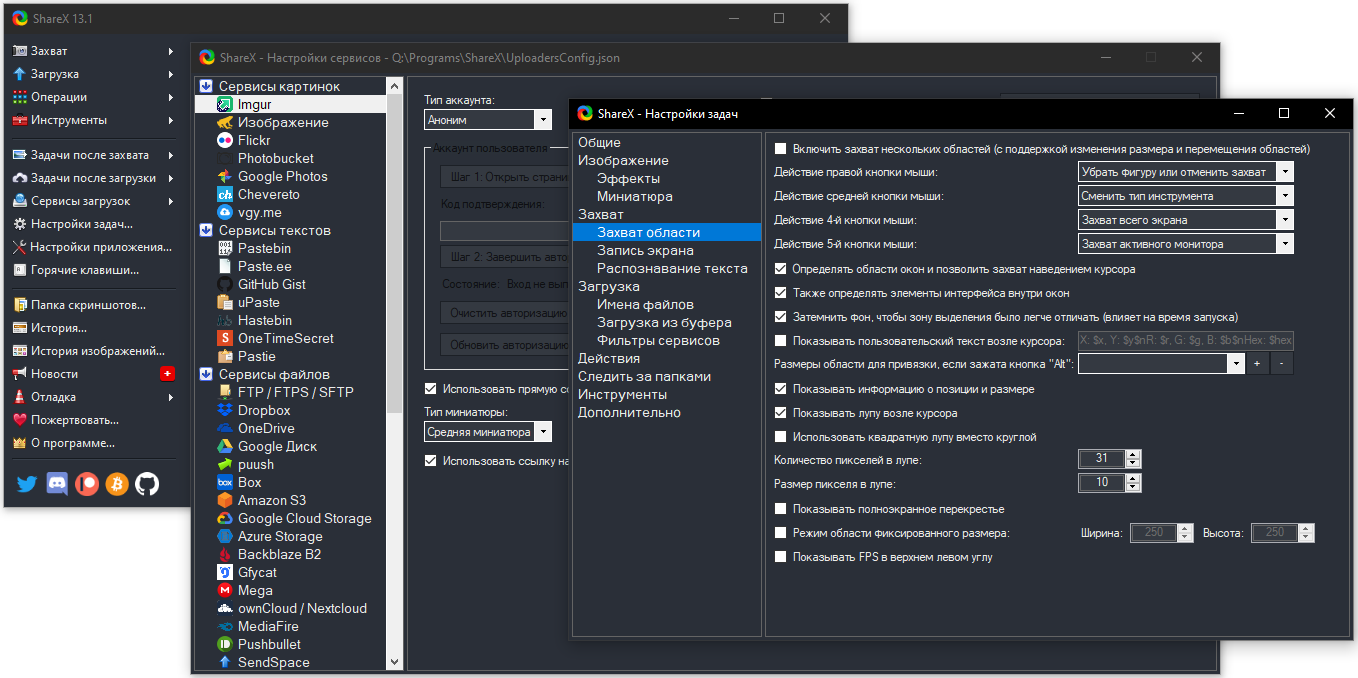
As a screenshot tool, though, ShareX is almost flawless. All those options remind me a bit of an exhausted person having a sudden burst of hyperactivity :-)

Configuring screenshots

“I’ll test it myself! I’ll test everything myself! And mop the floors!”

Efficiency Doesn’t Work. Ilya Yakyamtsev

Recording Video
3 April 2020 ·

I work remotely, so I talk to colleagues over Zoom and Slack. Mostly in chats, but many subjects are still easier to discuss by voice. That’s where it gets awkward: forget message indexing and search, and, most importantly, there’s no conversation archive. Sometimes you really need to remember: who said it? What exactly? When?

Zoom and Slack don’t solve this on their own. Zoom only records meetings you organize or have permission to record, which is far from all of them, while Slack doesn’t record video at all.

Solving the Problem

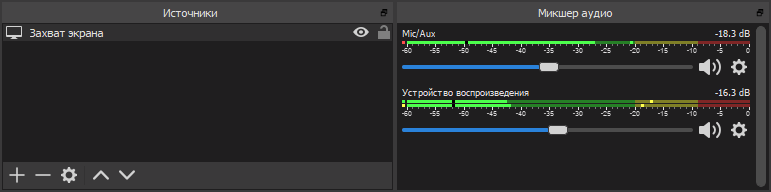
I solved it some time ago by installing OBS Studio, screen recording software popular with streamers. It handles conference recording beautifully. Setup is minimal: record the entire screen, microphone audio, and all playback audio. After a few test recordings, you can add mixer filters such as gain and noise suppression.

Configuring OBS Studio

Choose where to save the recordings under Output → Recording → Recording Path. We’re recording calls, so there’ll be lots of files. Might as well sort them into folders by day from the start. Go to Advanced settings and set Filename Formatting to something like %CCYY-%MM-%DD/%hh-%mm-%ss.

Quick Recording Controls

Opening OBS for every call is inconvenient, but it supports plenty of hotkeys. You can press some elaborate combination at the start and end of a conversation. That didn’t work for me, though: for some reason, the shortcuts kept slipping my mind. Even sticky notes didn’t help.

At first I got quite annoyed, then realized: if I can’t remember a shortcut, I should get rid of it. Start recording with one button, stop with another.

The hardware was easy: I have an ergonomic Microsoft keyboard with a wagonload of programmable buttons. Software was harder: OBS Studio understands some launch parameters, but there’s not much to choose from. There isn’t even a stop-recording option. I wanted more.

I eventually solved it with an OBS Studio plugin that lets you control a running instance. It was designed for remote recording control, from a smartphone for example, but it works just as well on the same machine.

Here’s what I ended up with:

  1. Install OBS Studio and the obs-websocket plugin. Clear “Enable System Tray Alerts” under Tools → WebSockets Server Settings, or it will report every little thing.
  2. Put this utility somewhere convenient to control the plugin from the command line.
  3. Assign OBSCommand.exe /startrecording to one button and OBSCommand.exe /stoprecording to another.
  4. Done. Look at you go!

A console window pops up for a moment when you press the button: OBSCommand launches, contacts obs-websocket, and waits for a reply. I initially wanted to hide the window, but changed my mind. If OBS Studio isn’t running or something goes wrong, the console will stay open, and at least I’ll know recording hasn’t started.